Choose between subscription and payment plan
“When I’m going to charge someone more than once, I want to know which of the two fits, so I don’t set the charge up wrong and have to redo it.”
Cuanto has two ways to charge repeatedly. Choosing well takes ten seconds and saves you rebuilding the product.
Subscription
Pick this if you don’t know when it ends.
- You set
- How much is charged each time, and how often
- It ends
- When you or your customer cancel it
- Example
- Weekly bread, $25 every week
Payment plan
Pick this if you already know the total.
- You set
- The total amount and how many payments it splits into
- It ends
- Only when every payment is made
- Example
- A $300 ring in 6 payments of $50
The question that settles it
Do you know how much your customer will pay in total? If yes, it’s a payment plan. If it has no end, it’s a subscription.
There is nothing to activate. In Cuanto a subscription is a price inside a product. No permission, no application: you create the product, add the price, done.
Charge the same every month (Subscription)
This is how you collect monthly fees without chasing anyone: build the price once and Cuanto charges on its own every period.
You only need the product or service you’re going to charge for. Automatic charges are paid by Visa or Mastercard only — no Yappy, ACH or cash, because Cuanto needs to be able to charge on its own later. The app’s interface is in Spanish, so buttons below are quoted exactly as they appear on screen.
On the Catálogo tab, tap Gestionar catálogo and choose Crear producto. If the product already exists, open it with the pencil and continue the same way.
Type the Nombre del producto and upload a photo. This is what your customer sees when they open the link.
Open the Precios tab and tap Crear nuevo precio. If the product is new, first tap Ver opciones avanzadas.
Under Tipo de precio, switch Único to Recurrente.
-
Under Tipo de precio recurrente, keep Suscripción.
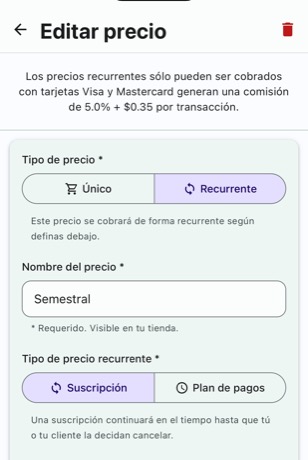
How the form looks. The gray band at the top shows your exact fee per transaction. Give it a Nombre del precio your customer understands, like “Mensual” or “Semestral”, and type the amount charged each time.
-
Choose Período de conteo (day, week, month or year) and then Frecuencia. For example “mes” + “cada 6 meses” charges twice a year.
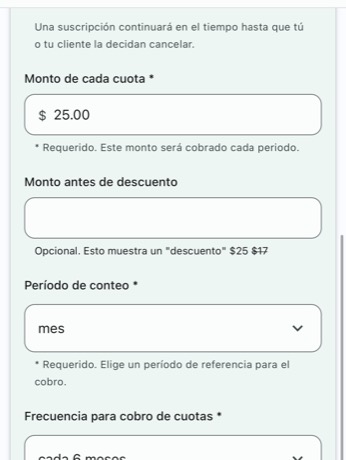
Period and frequency together set the rhythm of the charge. Below them comes the delivery switch. Tap Crear precio.
Tap Crear to save the product.
Done: the price appears in the list with a Suscripción label. It charges nothing yet — it starts charging when a customer pays the link.
Decide whether delivery is charged every cycle
Subscriptions show a Cobrar entrega en cada cobro switch, and it comes on. On means the delivery cost is added to every charge, every month.
Turn it off if your price already includes delivery. Your customer then pays exactly the same amount every cycle.
If you never touched it, you’re charging delivery every month
The switch defaults to on. Review your recurring prices if you didn’t mean to charge delivery each cycle.
Split an amount into several payments (Payment plan)
When the price is high and your customer can’t pay it in one go, splitting it into payments closes the sale today.
The path is the same as a subscription up to step 4 — only the amounts change. Also Visa or Mastercard only.
Create or open the product and go to the Precios tab, same as with a subscription.
Under Tipo de precio, choose Recurrente.
Under Tipo de precio recurrente, choose Plan de pagos.
Type the Monto total del plan. This is the full price, not the per-payment amount.
-
Choose the Cantidad de cuotas — how many payments it splits into. Cuanto calculates each payment for you and shows it right below.
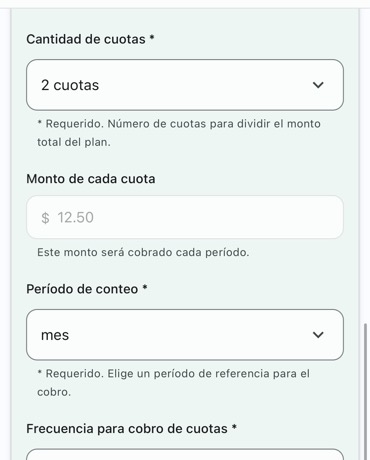
You type the total; the app calculates each payment. Choose how often it charges.
Tap Crear precio.
Tap Crear to save the product.
Done: the price gets a Plan de pagos label. The first payment is charged the day your customer buys; the rest follow on schedule.
If the total doesn’t split evenly, it won’t save
Cuanto will tell you «El monto total debe ser divisible entre la cantidad de cuotas» — the total must divide evenly. $100 doesn’t split into 3 equal payments: use $99 in 3, or $100 in 4. You can split into 2 to 12 payments, or 24.
Two differences from subscriptions
A payment plan can’t be paused and can’t be cancelled from the app: it runs until it completes. It also has no delivery switch, because delivery is charged once, at the start.
Send the charge to your customer
The automatic charge is born when your customer pays. You don’t activate it on their behalf: you send them the product link and they enter their card.
Open the product from the Catálogo tab.
Scroll down to «Comparte este producto con tus clientes».
-
Tap Whatsapp to send it by chat, or Copiar enlace to paste it anywhere.
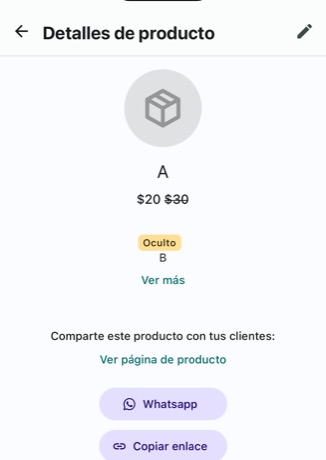
With Ver página de producto you can preview how it looks before sending it.
Done: that same link works for all your customers. Each one who pays creates their own automatic charge.
The most common mistake: the green button
The Vender por enlace button floating on almost every screen creates a one-time charge. It doesn’t work for subscriptions or payment plans, even if the product has recurring prices. For automatic charges, always share the product’s link.
See what your customer gets
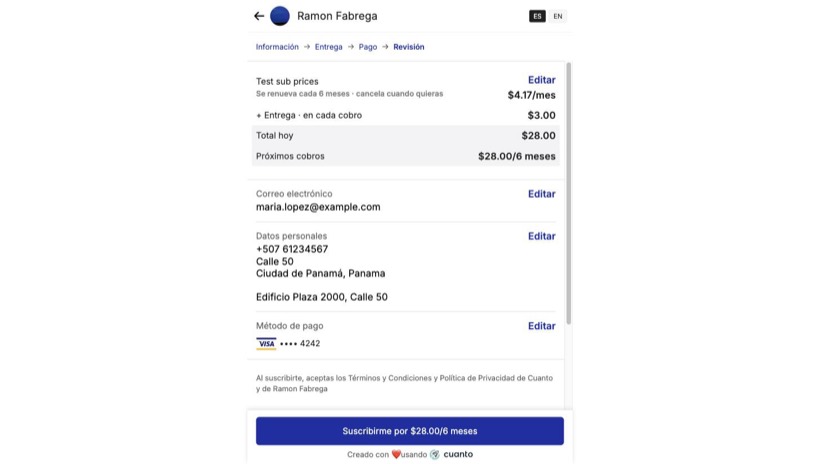
Before paying, your customer sees a screen that separates what they pay today from what will be charged later. The button repeats the price, so there are no surprises.
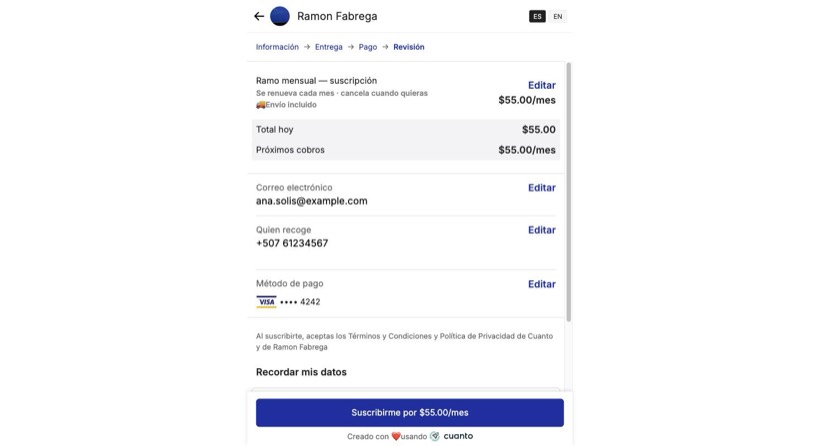
If you left delivery charging on, it appears as its own line marked «en cada cobro» (each cycle), so your customer understands why the total isn’t just the product price.
Cuanto warns them before every charge
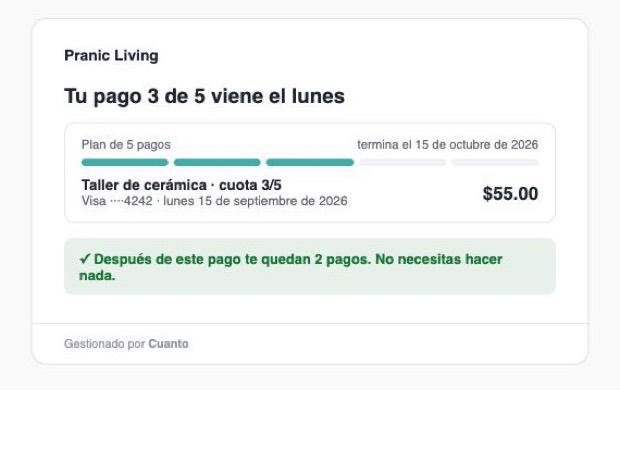
Three days before charging, your customer gets an email with the amount and the date. This cuts complaints about charges the customer didn’t remember.
- Monthly and yearly charges: a notice before every charge.
- Weekly and biweekly: only before the first, to avoid flooding their inbox.
- Payment plans: before each payment, saying how many remain.
- If their card is about to expire, the notice changes and asks them to update it.
Know who paid and who didn’t
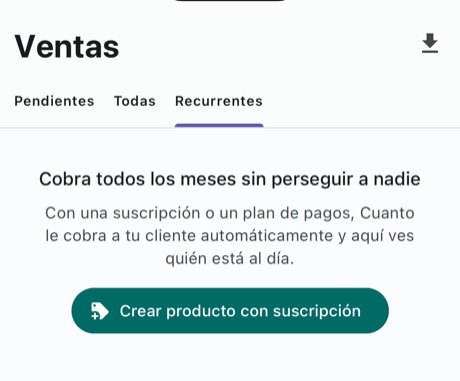
Go to Ventas and open the Recurrentes tab. It’s not a list of loose sales: it’s one row per customer, grouped by what you need to do. At the top sits Necesita atención with a count in parentheses. If that group is empty, you have nothing pending.
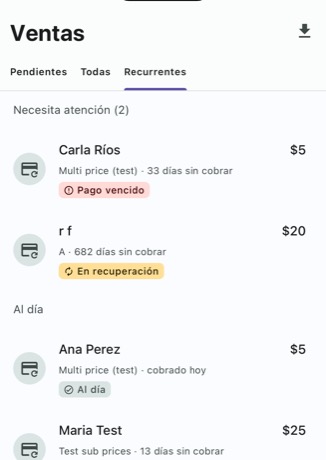
What each label means
- Al día
- Charged with no problem. Nothing for you to do.
- En recuperación
- A charge failed and Cuanto is retrying on its own. Your customer already got an email.
- Pago vencido
- It has gone a while without charging. This is when it pays to write to your customer.
- Pausada
- Paused until the date you set. It resumes on its own.
- Completada
- Payment plans only: every installment was paid.
- Vencida
- The recovery window ran out and it closed.
- Cancelada
- You or your customer cancelled it.
Pause, resume or cancel
Pausing is the alternative to cancelling. The customer isn’t charged and gets no deliveries during the pause, but keeps their price and their spot — and everything resumes on its own.
Open the sale from Recurrentes and find the Suscripción card.
Tap Pausar suscripción.
-
Choose 1 mes, 2 meses or Elegir fecha. Under each option it tells you the date it resumes.
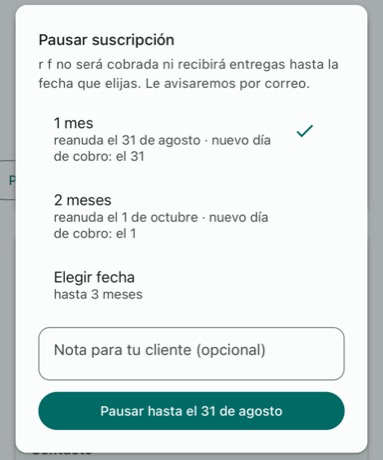
Each option previews the resume date and the new billing day. Optional: write a Nota para tu cliente. We include it in the email that tells them about the pause.
Tap the button — it carries the date: Pausar hasta el 31 de agosto.
Done: the card shows Pausada hasta 31 de agosto and a Reanudar ahora button appears. That label is the confirmation; no other message shows.
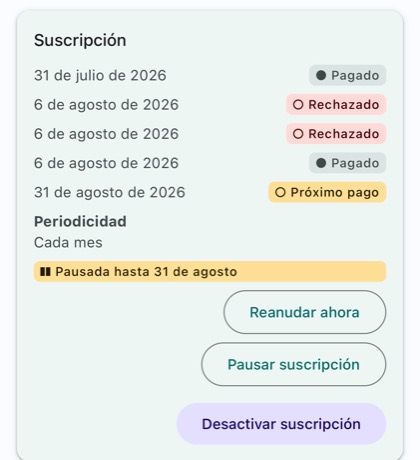
Worth knowing before you pause
- The billing day moves
- Pause until the 31st and your customer is charged on the 31st from then on. The change is permanent.
- Three months max, up to two extensions
- With Elegir fecha you can go from one week to three months out. You can extend a pause twice; on the third try the button disappears.
- It resumes on its own
- Nothing for you to do on the date. Your customer is warned three days ahead.
- Not for payment plans
- Nor for cancelled or past-due subscriptions. If you don’t see the button, that’s why.
Actually cancelling
Desactivar suscripción cuts the charge forever and can’t be undone. If your customer just needs a break, pause instead. Your customer can also cancel on their own from the emails Cuanto sends them; if they do, the sale is marked Cancelada with the reason they left.
Recover a failed charge
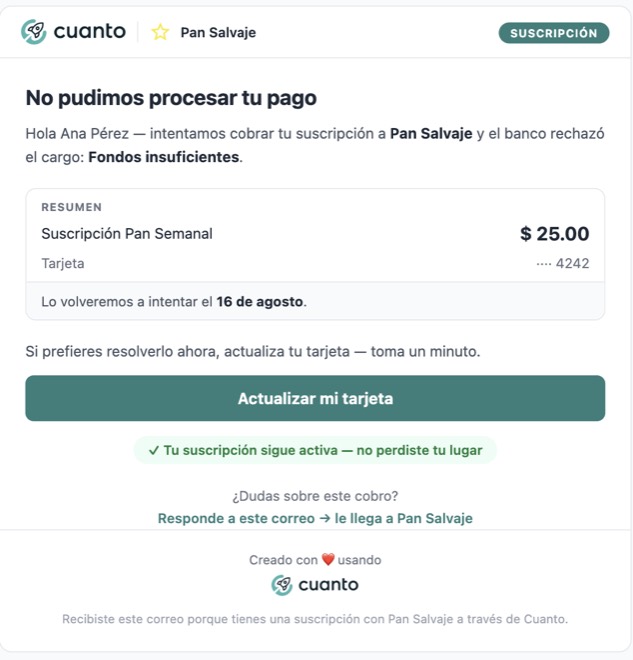
Cards fail — no funds, expired, or the bank declines. You don’t have to do anything right away, because a process is already running.
What happens on its own
- Day 0 · the charge fails
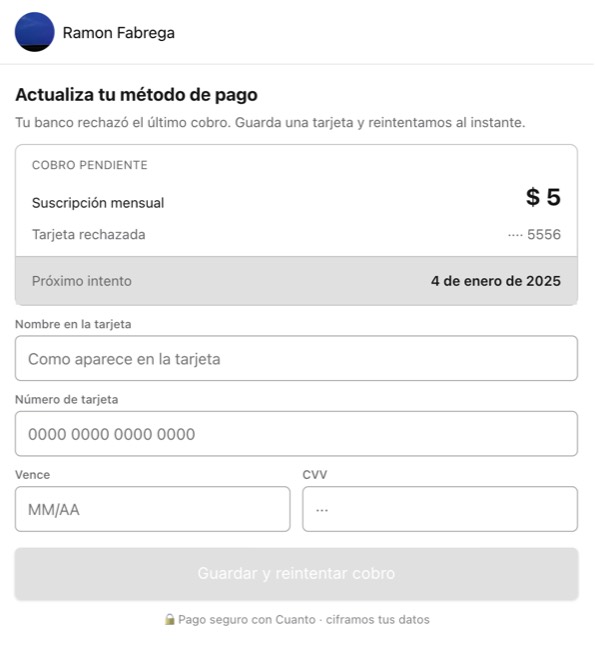
Your customer gets an email with the reason and a button to enter another card.
- Days 1, 3, 7 and 14 · retries
Cuanto retries the charge on its own. If one goes through, the label returns to Al día.
- Day 14 · past due
The label changes to Pago vencido and moves up into Necesita atención.
- Day 45 · it closes
If it never charged, the subscription closes on its own and your customer gets one last email.
When the bank declines the card outright
Some declines aren’t worth retrying — a cancelled card, for example. In those cases Cuanto doesn’t retry: it asks your customer for a new card, writing to them on day 0 and day 7.
What you can do
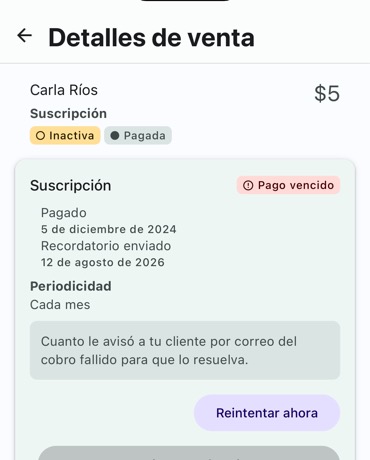
Open the sale and find the buttons on the Suscripción card. If one is gray, the reason is written right under it — it’s not broken.
- Reintentar ahora
- Charges the card right now. Useful when your customer tells you they have funds again. Once per day.
- Enviar recordatorio
- Re-sends the email asking them to update their card. One every 48 hours, three max per failed charge.
- Desactivar suscripción
- Cuts the charge forever. Can’t be undone, and only exists on subscriptions.